


Table of Contents
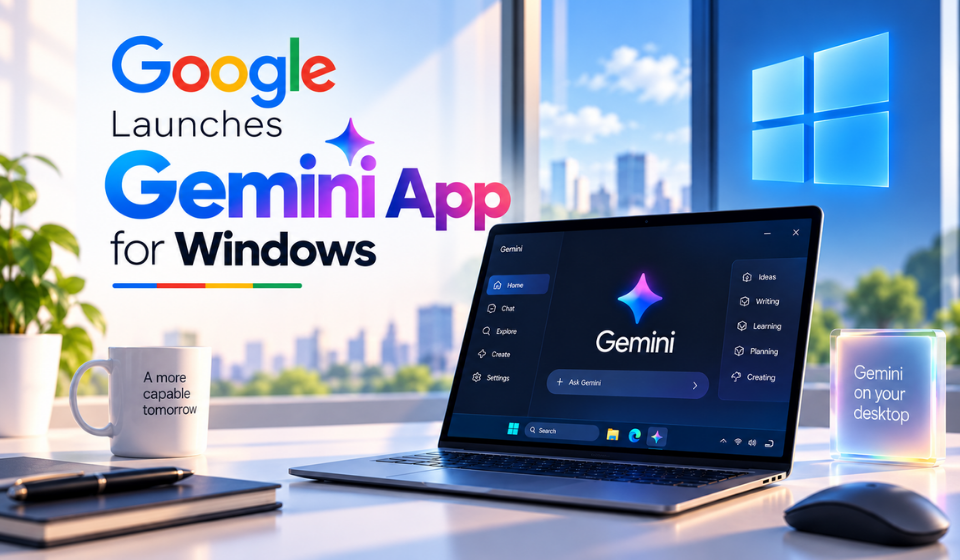
Google has launched the Gemini Windows app, giving Windows users a dedicated desktop way to access its AI assistant without opening a browser.
The Windows release follows Google’s earlier Gemini desktop availability on macOS and is designed to provide quick AI assistance while users work in other applications. Google highlights use cases such as fact-checking documents, brainstorming ideas and getting help with everyday tasks.
Gemini Comes to Windows Desktop
The new Gemini Windows app gives users a dedicated application rather than requiring them to rely solely on the web version.
Users can summon Gemini with the Alt + Space keyboard shortcut, allowing the assistant to appear while another application is open. This makes it possible to ask questions, generate ideas or get help with a task without leaving the current workflow.
For example, someone working on a document could quickly ask Gemini to check information or help develop ideas before returning to their work.
Gemini Spark Adds AI Assistance
The Windows experience also includes Gemini Spark, which Google positions as a personal AI agent for handling more complex tasks.
Spark can work with supported Connected Apps, allowing Gemini to use information and capabilities from services that users have connected. The exact capabilities available can vary depending on the connected services, account and permissions.
This gives Gemini a broader role than a conventional chatbot by allowing it to assist with tasks involving connected services.
Image and Video Generation
The Gemini Windows app also provides access to Google’s generative AI capabilities, including image and video generation.
Users can access these creative tools directly from the desktop experience rather than switching between separate applications or websites.
Google has highlighted its newer image-generation technology, including Nano Banana, as part of its Gemini ecosystem. However, Gemini Nano should not be confused with the technology used for video generation. Gemini Nano refers to Google’s family of smaller on-device AI models.
| Feature | Gemini Windows App |
| Desktop access | Dedicated Windows application |
| Quick launch | Alt + Space |
| Connected Apps | Supported |
| Gemini Spark | Available |
| Image generation | Available |
| Video generation | Available |
| Windows support | Windows 10 and Windows 11 |
| Future updates | More native desktop features planned |
A Familiar Interface With More Desktop Features Ahead
Visually, the Gemini Windows app remains familiar to people who have used Gemini on the web.
The main window resembles the existing Gemini interface, while a side panel provides access to features such as Notebooks and Recents.
Google describes the application as lightweight and designed to stay out of the way while users work.
The company has also indicated that more native desktop capabilities will roll out over time, suggesting that the current Windows release could be expanded with additional functionality in future updates.
How the Gemini Windows App Could Change Desktop Workflows
The new application makes Gemini easier to access during everyday Windows tasks.
The Alt + Space shortcut is particularly useful because users do not need to stop what they are doing and open a separate browser tab. Gemini can instead be brought into the workflow when assistance is required.
Students could use it for research and brainstorming, professionals could use it for documents and presentations, while creators could access AI-powered image and video generation from the same desktop experience.
However, the app should be viewed as an AI assistant that works alongside existing Windows applications, rather than a replacement for conventional productivity software.
Google Expands Gemini Beyond the Browser
The Windows launch represents another step in Google’s effort to make Gemini available across more parts of users’ digital workflows.
A dedicated desktop application gives Gemini a more persistent presence on Windows PCs, while features such as Connected Apps and Gemini Spark allow the assistant to move beyond simple question-and-answer interactions.
Google’s promise of additional native desktop capabilities could make the app more useful over time as the company expands what Gemini can do directly within the Windows environment.
Frequently Asked Questions
What is the Gemini Windows app?
It is Google’s dedicated desktop application for accessing Gemini on Windows PCs.
How do I open Gemini on Windows?
Users can summon the app using the Alt + Space keyboard shortcut.
Does Gemini work on Windows 10?
Yes. The Gemini desktop app is available for Windows 10 and Windows 11.
Does the Gemini Windows app support image generation?
Yes. Google’s image-generation capabilities are available through the Gemini desktop experience.
Does Gemini support video generation?
Yes. The Gemini experience provides access to Google’s video-generation capabilities.
Can Gemini work with other apps?
Gemini Spark can work with supported Connected Apps. The available functionality depends on the services connected to the user’s Gemini account and the permissions provided.
Conclusion
The Gemini Windows app brings Google’s AI assistant directly to Windows desktops, making it easier to access Gemini without constantly switching to a browser.
With Alt + Space quick access, Gemini Spark, supported Connected Apps and image and video generation, the application is designed to fit more naturally into everyday desktop workflows.
Google’s plans for additional native desktop capabilities also suggest that this may be the beginning of a broader expansion of Gemini on Windows, rather than the final version of Google’s desktop AI experience.